📊 Data-Driven Testing
Run the same request, folder, collection, or exported collection multiple times using data from a CSV or JSON file.
Each row in the data file becomes one complete execution of the selected request(s), making it easy to validate APIs against multiple datasets without manually changing variables between runs.
💻 Syntax
fc-cli dd [options]
⚙️ Options
| Option | Description |
|---|---|
--req | Run one or more requests by name or ID |
--fol | Run a folder by name or ID |
--col | Run a collection by name or ID |
--file | Run an exported collection |
--data | CSV or JSON data file (required) |
--dd-format | Data file format (csv or json) |
--dd-separator | CSV separator (,, ;, or tab) |
--stop-on-fail | Stop execution after the first failed row |
--validate | Validate variables without executing requests |
--var | Override the Variable Set by name or ID |
--var-file | Override variables for an exported collection |
--export | Export the test report |
--export-path | Directory where reports are saved |
🎯 Supported scopes
Data-driven testing can be executed against:
- A single request
- Multiple requests
- A folder
- A collection
- An exported collection (
--file)
🚀 Basic Usage
| Action | Command |
|---|---|
| Run a collection | fc-cli dd --col "User APIs" --data users.csv |
| Run a collection by ID | fc-cli dd --col <collection-id> --data users.csv |
| Run a folder | fc-cli dd --fol "Authentication" --data users.csv |
| Run a folder by ID | fc-cli dd --fol <folder-id> --data users.csv |
| Run a request | fc-cli dd --req "Login" --data users.csv |
| Run a request by ID | fc-cli dd --req <request-id> --data users.csv |
| Run multiple requests | fc-cli dd --req "Login,Get Profile,Update User" --data users.csv |
| Run an exported collection | fc-cli dd --file collection.json --data users.csv |
| Run a folder from an exported collection | fc-cli dd --file collection.json --fol "Authentication" --data users.csv |
| Run a request from an exported collection | fc-cli dd --file collection.json --req "Login" --data users.csv |
| Override Variable Set | fc-cli dd --col "User APIs" --var "Production" --data users.csv |
| Override variables for an exported collection | fc-cli dd --file collection.json --var-file variables.json --data users.csv |
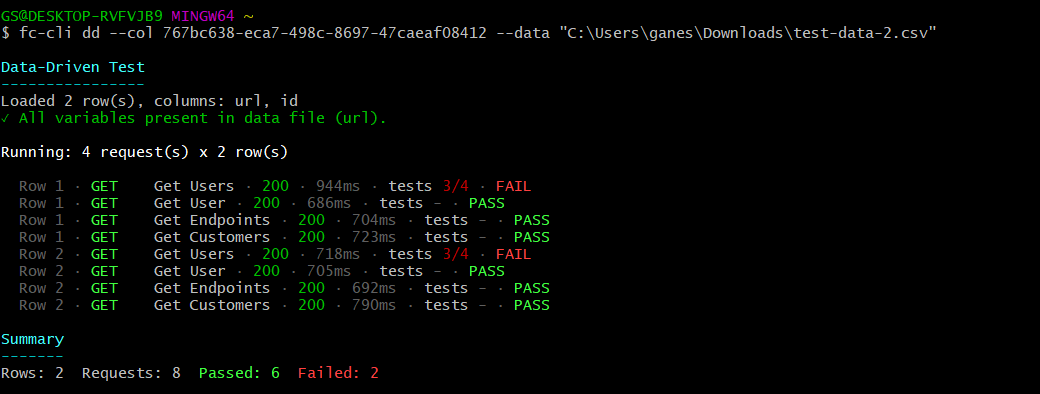
📦 Run an Exported Collection
Fetch Client CLI can execute an exported collection JSON file directly.
This mode does not require the Fetch Client database or the VS Code extension.
Running an exported collection is completely self-contained.
- ✅ No Fetch Client database required
- ✅ No VS Code extension required
- ✅ Perfect for CI/CD pipelines
- ✅ Easy to share with teammates
- ✅ Great for running APIs on build agents or remote machines
🗂️ Data file formats
CSV
The first row must contain column headers.
username,password,expectedStatus
alice,secret123,200
bob,password123,401
JSON
The data file can contain an array of objects.
[
  {
    "username": "alice",
    "password": "secret123",
    "expectedStatus": 200
  },
  {
    "username": "bob",
    "password": "password123",
    "expectedStatus": 401
  }
]
🔗 Using data variables
Each column name becomes a variable that can be referenced inside requests.
For example:
{{username}}
{{password}}
{{expectedStatus}}
During execution, the values are replaced using the current row from the data file.
⚙️ Data file options
Specify the file format
Normally the CLI detects the format from the file extension.
To specify it explicitly:
fc-cli dd \
  --col Users \
  --data users.txt \
  --dd-format csv
Supported values:
csvjson
Specify a CSV separator
The default separator is a comma.
fc-cli dd \
  --col Users \
  --data users.csv \
  --dd-separator ";"
Supported separators:
,;tab
✅ Validating variables
Before executing requests, you can validate that every variable used by the selected requests exists in the data file.
fc-cli dd \
  --col Users \
  --data users.csv \
  --validate
The CLI reports:
- Variables found
- Missing variables
- Available columns
No requests are executed when using --validate.
⏹️ Stop on failure
By default, every row is executed even if earlier rows fail.
To stop immediately after the first failed row:
fc-cli dd \
  --col Users \
  --data users.csv \
  --stop-on-fail
🔧 Variable sets
Database collections
Override the variable set used during execution.
fc-cli dd \
  --col Users \
  --var Production \
  --data users.csv
If the collection is already linked to a variable set, the linked variable set takes precedence.
Exported collections
Use a variable file.
fc-cli dd \
  --file collection.json \
  --var-file variables.json \
  --data users.csv
🥇 Variable precedence
Variables are resolved using the following priority:
- Data file row
- Collection variable set
- Request defaults
If a variable exists in both the data file and the selected variable set, the value from the data file is used.
🔄 Execution flow
For each row in the data file:
- Load the row values.
- Merge variables.
- Execute the selected request(s) sequentially.
- Record request results.
- Continue with the next row.
For multiple selected requests, every request is executed before moving to the next data row.
🖥️ Console output
During execution, the CLI displays:
- Current row
- Request name
- HTTP method
- Status code
- Response time
- Test assertion summary
- PASS/FAIL result
- Error message (if any)
After completion, a summary is displayed showing:
- Total rows
- Total requests
- Passed requests
- Failed requests
📤 Exporting reports
Reports can be exported after the run completes.
JSON
fc-cli dd \
  --col Users \
  --data users.csv \
  --export json
CSV
fc-cli dd \
  --col Users \
  --data users.csv \
  --export csv
HTML
fc-cli dd \
  --col Users \
  --data users.csv \
  --export html
NUnit
fc-cli dd \
  --col Users \
  --data users.csv \
  --export nunit
Export to a custom directory
fc-cli dd \
  --col Users \
  --data users.csv \
  --export html \
  --export-path ./reports
Supported export formats
| Format | Description |
|---|---|
| JSON | Complete execution report |
| CSV | Spreadsheet-friendly report |
| HTML | Interactive report |
| XML | Structured XML report |
| NUnit | NUnit-compatible XML report |
🛑 Gracefully stopping a test
Press Ctrl+C while the test is running.
-
First Ctrl+C
- Stops after the current request finishes.
- Prints the final summary.
- Generates export reports if requested.
-
Second Ctrl+C
- Immediately terminates the process.
🚧 Limits
| Setting | Maximum |
|---|---|
| Data rows | 100 |
💡 Examples
Execute a collection
fc-cli dd \
  --col "User APIs" \
  --data users.csv
Validate variables only
fc-cli dd \
  --col "User APIs" \
  --data users.csv \
  --validate
Execute with stop-on-failure
fc-cli dd \
  --col "User APIs" \
  --data users.csv \
  --stop-on-fail
Execute selected requests
fc-cli dd \
  --req "Login,Get Profile" \
  --data users.csv
Execute an exported collection
fc-cli dd \
  --file collection.json \
  --data users.csv \
  --var-file variables.json
Export an HTML report
fc-cli dd \
  --col "User APIs" \
  --data users.csv \
  --export html \
  --export-path ./reports
📝 Notes
- CSV and JSON data files are supported.
- A maximum of 100 data rows can be processed in a single run.
- Requests execute sequentially for each data row.
- Variable validation can be performed before execution using
--validate. - Request assertions are evaluated normally during data-driven testing.
- Reports can be exported in JSON, CSV, HTML, XML, and NUnit formats.
- Press Ctrl+C once to stop gracefully while preserving completed results.