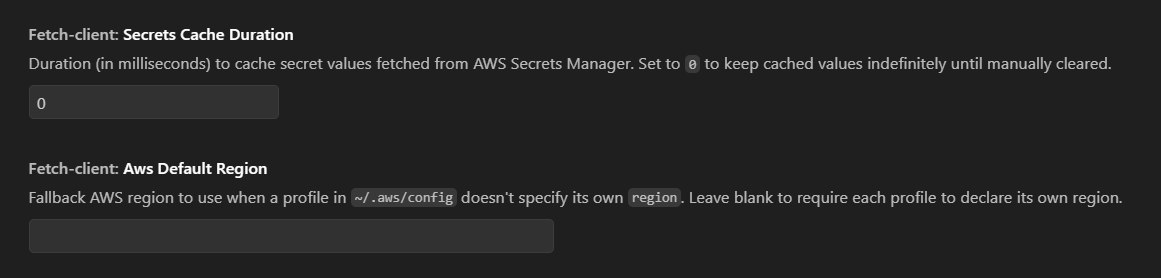
Secrets Manager Integration
Keep sensitive values - API keys, passwords, tokens - out of your collections entirely. Instead of typing a secret directly into a variable, point the variable at an AWS Secrets Manager secret, and the extension will fetch the real value for you at request time.
🧩 Setting up a secret-backed variable
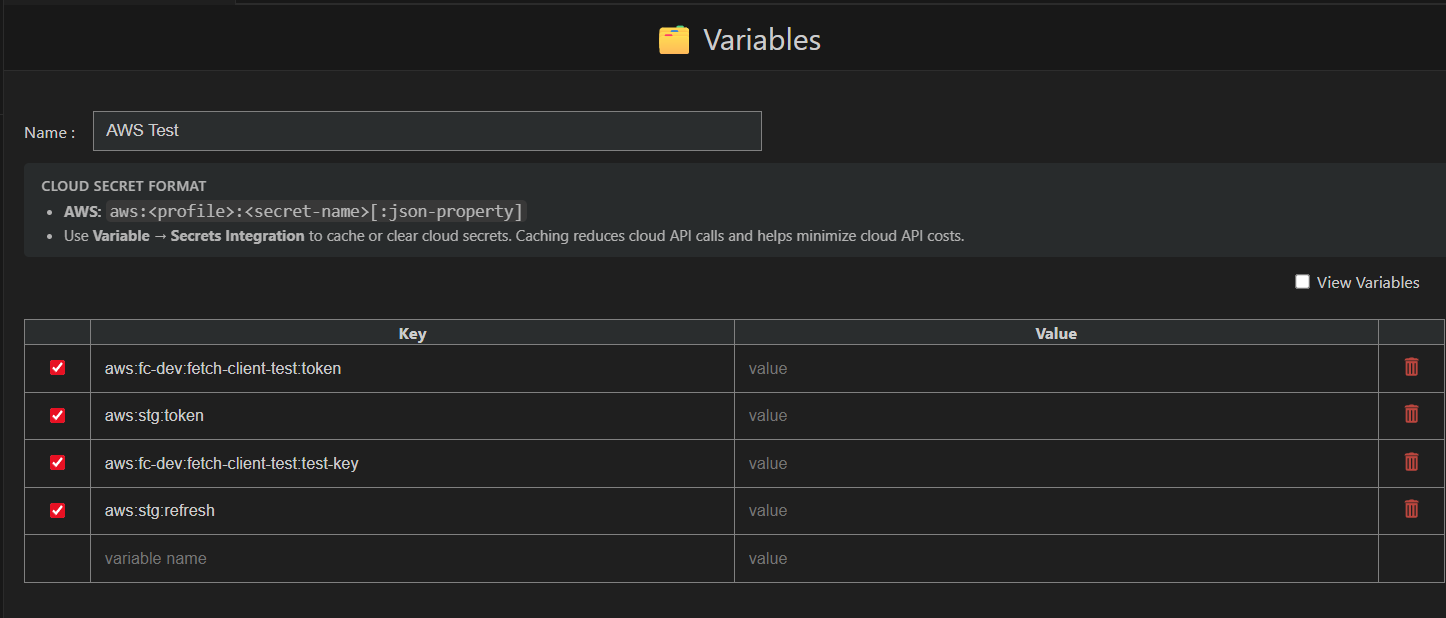
Instead of giving a variable a plain value, give it a value in this special format:
aws:<profile>:<secretName>
or, if you only need one property out of a JSON secret:
aws:<profile>:<secretName>:<jsonProperty>
- profile - the AWS CLI profile to use (from your local
~/.aws/config/~/.aws/credentials). - secretName - the name (or ARN) of the secret in AWS Secrets Manager.
- jsonProperty (optional) - if the secret stores a JSON object (e.g.
{ "apiKey": "...", "apiSecret": "..." }), this pulls out just that one field.
You can then reference the variable anywhere in your requests as {{aws:profile:secretName}} just like any other variable - the extension resolves it to the real secret value behind the scenes when the request runs.
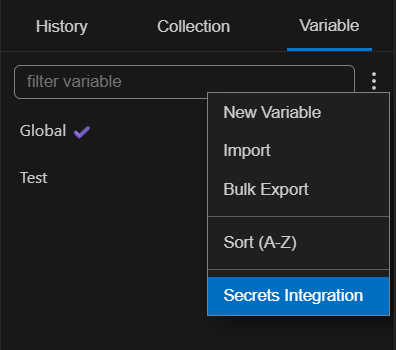
📂 Opening the Secrets Integration panel
Open Secrets Integration from the variable menu. It automatically scans all your variable sets and lists every variable written in the aws:profile:secret format.
If none of your variables use this format yet, you'll see a message letting you know - simply add one using the format above and reopen the panel.
🎯 Filtering by profile
If you're using multiple AWS profiles across your variables, use the Profile dropdown to narrow the list down to just one profile, or leave it on All profiles to see everything at once. The table below updates to show only the matching variables, their profile, and the secret (and property, if set) each one points to.
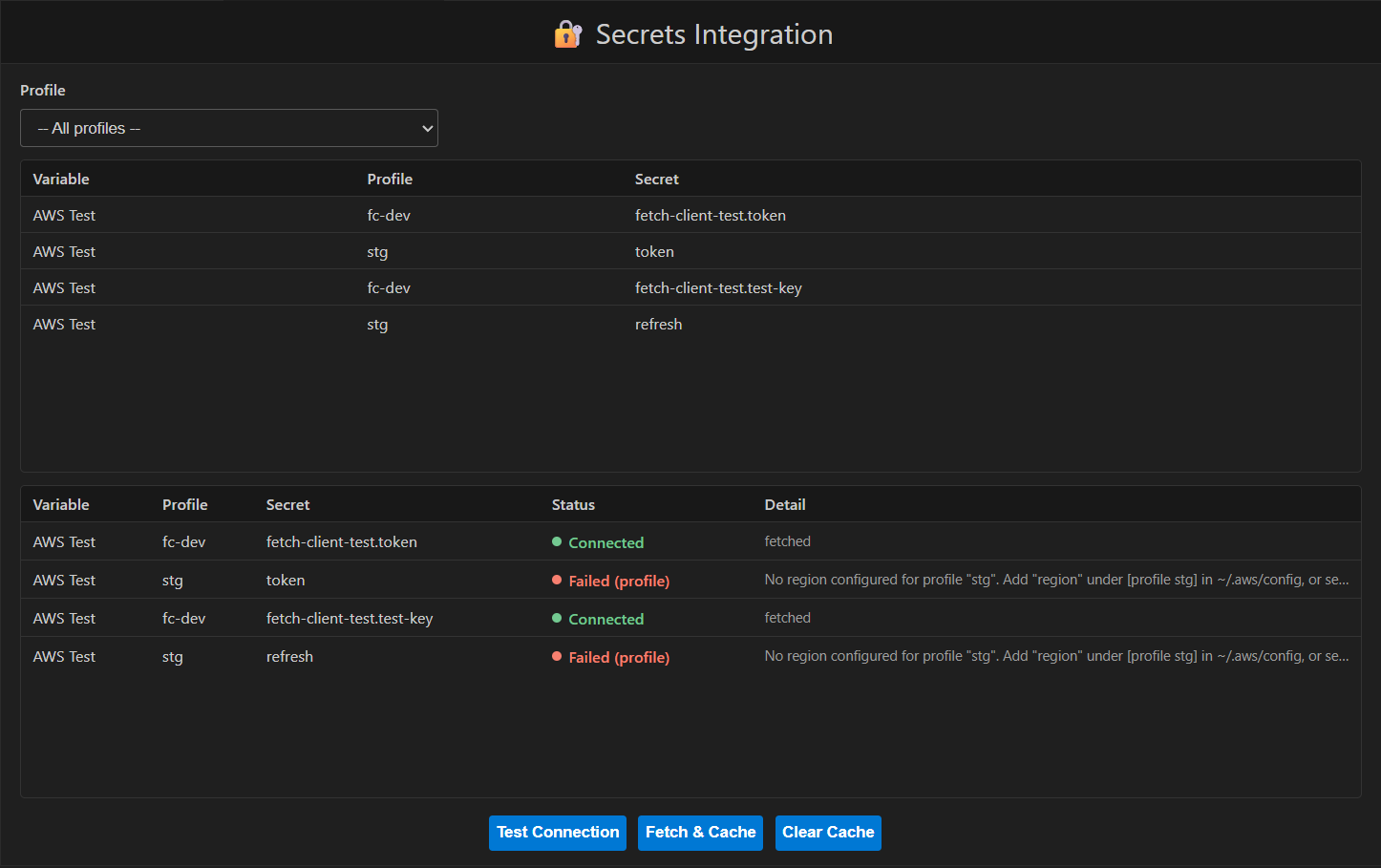
▶️ Actions
| Button | What it does |
|---|---|
| Test Connection | Checks that each AWS profile's credentials are valid and that its secret(s) can be reached - without necessarily forcing a fresh download if a cached value is still valid. Good for a quick health check. |
| Fetch & Cache | Forces a fresh fetch of each secret from AWS Secrets Manager and stores the result locally, ready to be used immediately in your requests. |
| Clear Cache | Removes the cached values for the selected profile/secrets, so the next request or check fetches them fresh from AWS again. |
All three actions apply to whatever profile filter you currently have selected.
📊 Reading the results
After running an action, a results table appears with:
| Column | Meaning |
|---|---|
| Variable | The variable set the secret reference belongs to |
| Profile | The AWS profile used |
| Secret | The secret name (and property, if one was specified) |
| Status | ✅ Connected / Cleared, or ❌ Failed |
| Detail | Extra context - e.g. whether a value came from cache or was freshly fetched, or the error message if something went wrong |
If a failure happens, the Status column also tells you whether it failed at the profile stage (bad or missing AWS credentials/region) or the secret stage (the secret itself couldn't be retrieved).
📝 Good to know
- Your AWS profile needs a region configured (either in
~/.aws/configor via the extension's default region setting) - otherwise the connection check will fail before it even reaches AWS. - Fetched secrets are cached for a configurable amount of time to avoid hitting AWS Secrets Manager on every single request. Use Fetch & Cache or Clear Cache if you need to force a refresh sooner.
- Secret values are only ever fetched using your local AWS credentials - nothing is sent to or stored outside your machine.