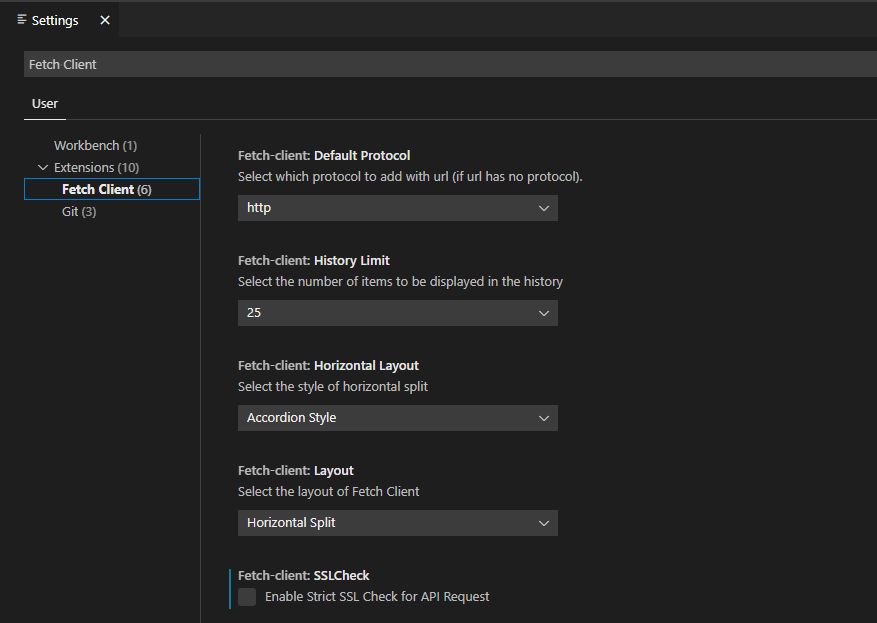
Layout (fetch-client.layout) | String | Horizontal Split | Vertical Split, Horizontal Split | Selects the overall layout of the Fetch Client interface. |
Horizontal Layout (fetch-client.horizontalLayout) | String | Accordion Style | Split Style, Accordion Style | Selects the display style when Horizontal Split layout is used. |
Strict SSL Check (fetch-client.SSLCheck) | Boolean | true | true, false | Enables or disables strict SSL certificate validation for API requests. |
History Limit (fetch-client.historyLimit) | String | 25 | All, 25, 50, 75, 100 | Specifies the maximum number of history entries displayed. |
History View (fetch-client.historyView) | String | Folder | List, Folder | Chooses how request history is organized and displayed. |
Request Timeout (fetch-client.timeOut) | Number | 120000 | Any positive number | Sets the request timeout in milliseconds. A value of 0 disables the timeout. |
Default Protocol (fetch-client.defaultProtocol) | String | http | http, https | Automatically prefixes URLs without a protocol using the selected protocol. |
Headers Case Sensitive (fetch-client.headersCaseSensitive) | Boolean | true | true, false | When enabled, request headers are sent exactly as entered. When disabled, all header names are converted to lowercase before sending. |
Separate Request Tab (fetch-client.separateRequestTab) | Boolean | false | true, false | Opens each request in a separate editor tab instead of reusing the current tab. |
Log Response (fetch-client.log) | Boolean | false | true, false | By default, only request details are logged. When enabled, both request and response details are logged. |
Run Main Request on Pre-request Failure (fetch-client.runMainRequest) | Boolean | false | true, false | When enabled, the main request runs even if a pre-request or pre-condition fails. When disabled, the main request is skipped if any pre-request or pre-condition fails. |
Response Limit (fetch-client.responseLimit) | Number | 5 | 1, 2, 5, 10, 20, 25 | Specifies the maximum response size (in MB) that Fetch Client processes. |
DB Path (fetch-client.dbPath) | String | Default | Default, Workspace, Custom Path | Selects where Fetch Client stores its database files. |
Custom DB Path (fetch-client.customDbPath) | String | "" | Any absolute directory path | Specifies the storage location when DB Path is set to Custom Path. |
Save to Workspace (Deprecated) (fetch-client.saveToWorkspace) | Boolean | false | true, false | Deprecated. Use DB Path instead. Stores all Fetch Client data inside the current workspace. |
Workspace Path (fetch-client.workspacePath) | String | "" | Internal value | Internal database path used by Fetch Client. Do not edit manually. |
Encrypted Variables (fetch-client.encryptedVariables) | Boolean | false | true, false | Encrypts environment variable values stored locally. Reload VS Code after changing this setting. |
Variable Encryption Key (fetch-client.variableEncryptionKey) | String | fetch-client-Tr@nsit-$ecret-z0z4 | Any string | Encryption key used to encrypt and decrypt stored variable values. Changing this key without re-encrypting existing data may make previously stored values unreadable. |
Export Collection with Variables (fetch-client.exportCollectionWithVariables) | Boolean | false | true, false | Exports any variables linked to a collection along with the collection. Exported variable values are saved in unencrypted format. |
Save Response (fetch-client.saveResponse) | Boolean | false | true, false | Saves response data locally after a request completes. Responses containing file downloads are not saved. |