TLS / SSL Client Certificates
Fetch Client supports mutual TLS (mTLS) by allowing you to configure client certificates for specific HTTPS hosts. When a request is sent to a matching host, the configured certificate is automatically attached.
Client certificates are only used for HTTPS requests. HTTP requests ignore all TLS settings.
⚙️ How it works
When an HTTPS request is executed, Fetch Client performs the following steps:
Request
   │
   ▼
Is HTTPS?
   │
   ├── No → Send request normally
   │
   ▼
Load TLS configuration
   │
   ▼
Find matching certificate
   │
   ├── No match
   │      │
   │      ▼
   │   Use default HTTPS agent
   │
   ▼
Certificate found
   │
   ├── PEM
   │      ▼
   │   Load certificate + private key
   │
   └── PFX
          ▼
      Load PFX bundle

   ▼
Create HTTPS Agent
   │
   ▼
Cache HTTPS Agent
   │
   ▼
Send Request
📄 Supported Certificate Types
Fetch Client supports both PEM and PFX (PKCS#12) client certificates.
| Certificate Type | Required Files | Description |
|---|---|---|
| PEM | Certificate (.pem/.crt) + Private Key (.key) | Standard OpenSSL certificate format. |
| PFX | Single .pfx or .p12 file | Contains both the certificate and private key. |
🌐 Host Matching
Certificates are selected automatically based on the request hostname.
🎯 Exact Match
The configured host must exactly match the request hostname.
Example:
Configured Host:
api.company.com

Request:
https://api.company.com/users

✔ Client certificate is used
🌍 Wildcard Match
Wildcard hosts are also supported.
Example:
Configured Host:
*.company.com

Matches:
api.company.com
auth.company.com
test.company.com
Does not match:
company.com
⭐ Multiple Wildcards
If multiple wildcard certificates match a hostname, Fetch Client selects the most specific match.
Example:
| Configured Host | Request | Selected |
|---|---|---|
*.company.com | api.dev.company.com | ❌ |
*.dev.company.com | api.dev.company.com | ✅ |
The longest matching wildcard pattern always takes precedence.
🏆 Certificate Selection Order
When making an HTTPS request, Fetch Client searches for certificates in the following order:
- Exact hostname match
- Most specific wildcard match
- No certificate (uses the default HTTPS agent)
🛡️ SSL Verification
Fetch Client allows you to enable or disable server certificate verification.
| Setting | Behavior |
|---|---|
| Enabled | Validates the server certificate against trusted Certificate Authorities (recommended). |
| Disabled | Skips server certificate validation. Useful when working with self-signed certificates during development. |
⚠️ Disabling SSL verification reduces connection security and should only be used in development or testing environments.
⚡HTTPS Agent Caching
Creating an HTTPS agent requires reading certificate files from disk.
To improve performance, Fetch Client caches HTTPS agents after they are created.
The cache key includes:
- Host
- Certificate type
- Certificate file paths
- SSL verification setting
Subsequent requests reuse the cached HTTPS agent instead of reloading certificate files.
✨ Benefits
- Faster request execution
- Reduced disk I/O
- Lower memory allocations
- Better performance during repeated requests
✅ Certificate Validation
Before creating an HTTPS agent, Fetch Client validates the certificate configuration.
PEM Certificates
The following fields are required:
- Certificate path
- Private key path
If either field is missing, the request fails with an error.
PFX Certificates
The following field is required:
- PFX file path
If the file cannot be loaded, the request fails with an error.
❌ Common Errors
| Error | Cause |
|---|---|
Invalid PEM certificate configuration | Certificate or private key path is missing. |
Invalid PFX certificate configuration | PFX file path is missing. |
Unable to load certificate | Certificate file could not be read. |
ENOENT | Certificate file does not exist. |
📝 Configuration Examples
PEM Certificate
{
  "host": "api.company.com",
  "type": "pem",
  "certPath": "/certs/client.pem",
  "keyPath": "/certs/client.key",
  "passphrase": "secret",
  "enabled": true
}
PFX Certificate
{
  "host": "*.company.com",
  "type": "pfx",
  "pfxPath": "/certs/client.pfx",
  "passphrase": "secret",
  "enabled": true
}
⚙️ Fetch Client Configuration
TLS certificates are configured through the Fetch Client Settings in Visual Studio Code.
🛠️ Open Settings
- Open the Command Palette (
Ctrl+Shift+PorCmd+Shift+P). - Search for Fetch Client: Settings.
- Locate the TLS Configuration section.
- Add one or more client certificate configurations.
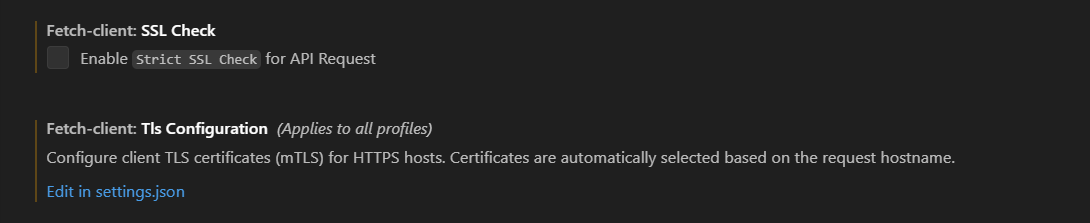
Alternatively, you can edit your settings.json file directly.
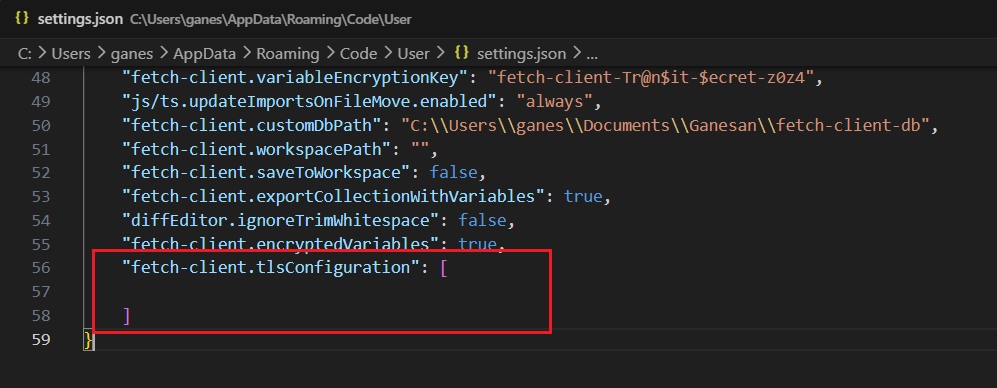
📝 Example Configuration
{
  "fetch-client.SSLCheck": true,
  "fetch-client.tlsConfiguration": [
    {
      "host": "api.company.com",
      "type": "pem",
      "certPath": "C:\\certs\\client.pem",
      "keyPath": "C:\\certs\\client.key",
      "passphrase": "secret",
      "enabled": true
    },
    {
      "host": "*.internal.company.com",
      "type": "pfx",
      "pfxPath": "C:\\certs\\client.pfx",
      "passphrase": "secret",
      "enabled": true
    }
  ]
}
⚙️ Configuration Options
| Property | Required | Description |
|---|---|---|
host | ✅ | Exact hostname or wildcard hostname used to select the client certificate (for example api.company.com or *.company.com). |
type | ✅ | Certificate format. Supported values are pem and pfx. |
certPath | PEM | Absolute path to the client certificate file. |
keyPath | PEM | Absolute path to the private key file. |
pfxPath | PFX | Absolute path to the PFX/PKCS#12 file. |
passphrase | No | Passphrase used to decrypt the private key or PFX file, if required. |
enabled | No | Enables or disables the certificate. Defaults to true. |
💡 Multiple certificates can be configured. Fetch Client automatically selects the appropriate certificate based on the request hostname.
🔒 The passphrase is stored in plain text in your VS Code settings.json. Consider using operating system file permissions to protect sensitive certificate files.
💡 Best Practices
- Keep SSL Verification enabled whenever possible.
- Use wildcard certificates only when multiple subdomains share the same client certificate.
- Prefer exact host mappings for better security.
- Store certificate files outside your project repository.
- Protect private keys with appropriate file permissions.
- Use passphrase-protected certificates whenever possible.
- Remove expired or unused certificates from your configuration.