Workspace and Custom Path
The Workspace feature enables teams to collaborate on API testing by storing and sharing requests in a centralized location.
The default location for the database files is:
- Windows:
%APPDATA%\Code\User\globalStorage\ganesanchandran.fetch-client - Linux:
~/.config/Code/User/globalStorage/ganesanchandran.fetch-client - macOS:
/Users/{{username}}/Library/Application Support/Code/User/globalStorage/ganesanchandran.fetch-client
For macOS, replace {{username}} with your account username.
🗂️ Overview
Workspace/Custom path allows you to save all your API requests in your project folder. This makes it easy to share requests with your team through version control systems like Git.
When enabled, Fetch Client automatically creates a fetch-client folder in your workspace to store all request configurations.
✨ Key Features
Save to Workspace/Custom Path
Store all your API requests directly in your workspace folder instead of local storage. This ensures your requests are available to everyone on your team.
Auto Organization
Fetch Client automatically creates and manages the fetch-client folder structure. You don't need to create or organize folders manually.
Team Sharing
Share your API requests with your entire team by committing the workspace folder to your version control system (Git, SVN, etc.). Team members can access the same requests instantly.
Easy Setup
Enable or disable the Workspace feature anytime through Fetch Client settings.
⚙️ How to Enable
- Open Fetch Client settings in VS Code
- Find the Db Path option
- Select the workspace or Custom Path (Note: Before selecting the Custom Path option, enter the custom database path in the Custom DB Path text box.)

Workspace Path Option
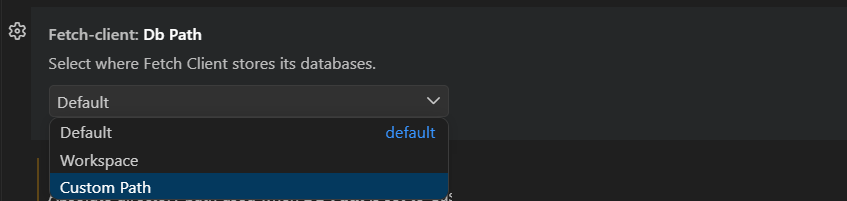
Custom Path Option

Custom Path Text
⚠️ Important Note
Do not manually edit configuration files for workspace path. Fetch Client manages all configuration automatically. Editing these files by hand may cause data loss or errors.
