API Responses
When you send an API request, the server sends back a response. Fetch Client helps you view and analyze these responses in multiple ways.
🔄 Response Views
Fetch Client offers different ways to view response data based on the content type.
Raw View with Syntax Highlighting
See your response data with color-coded formatting for easy reading.
Supported formats:
- JSON - Most common API format
- XML - Enterprise and legacy APIs
- HTML - Web page responses
- Plain text - Simple text responses
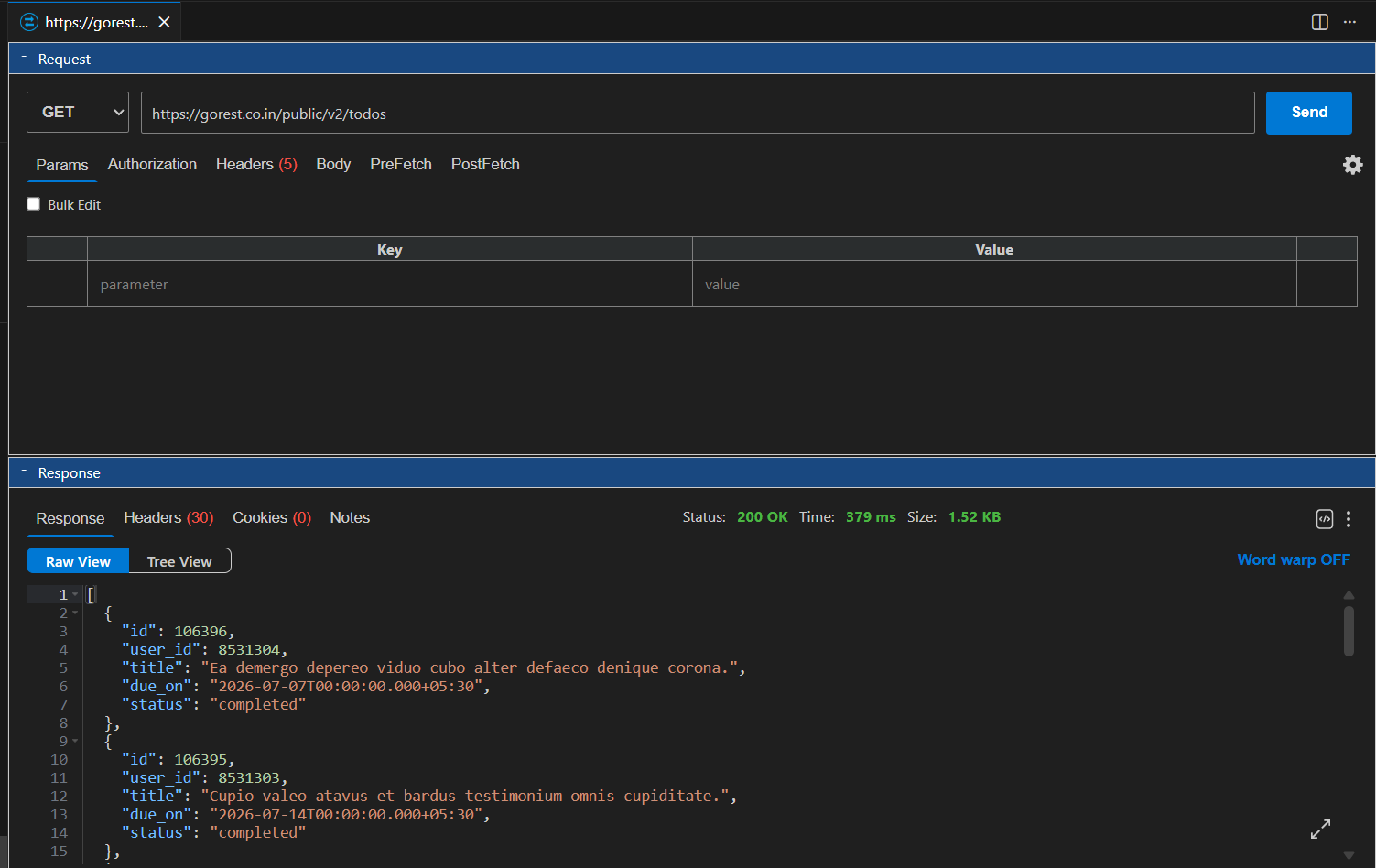
Response Panel
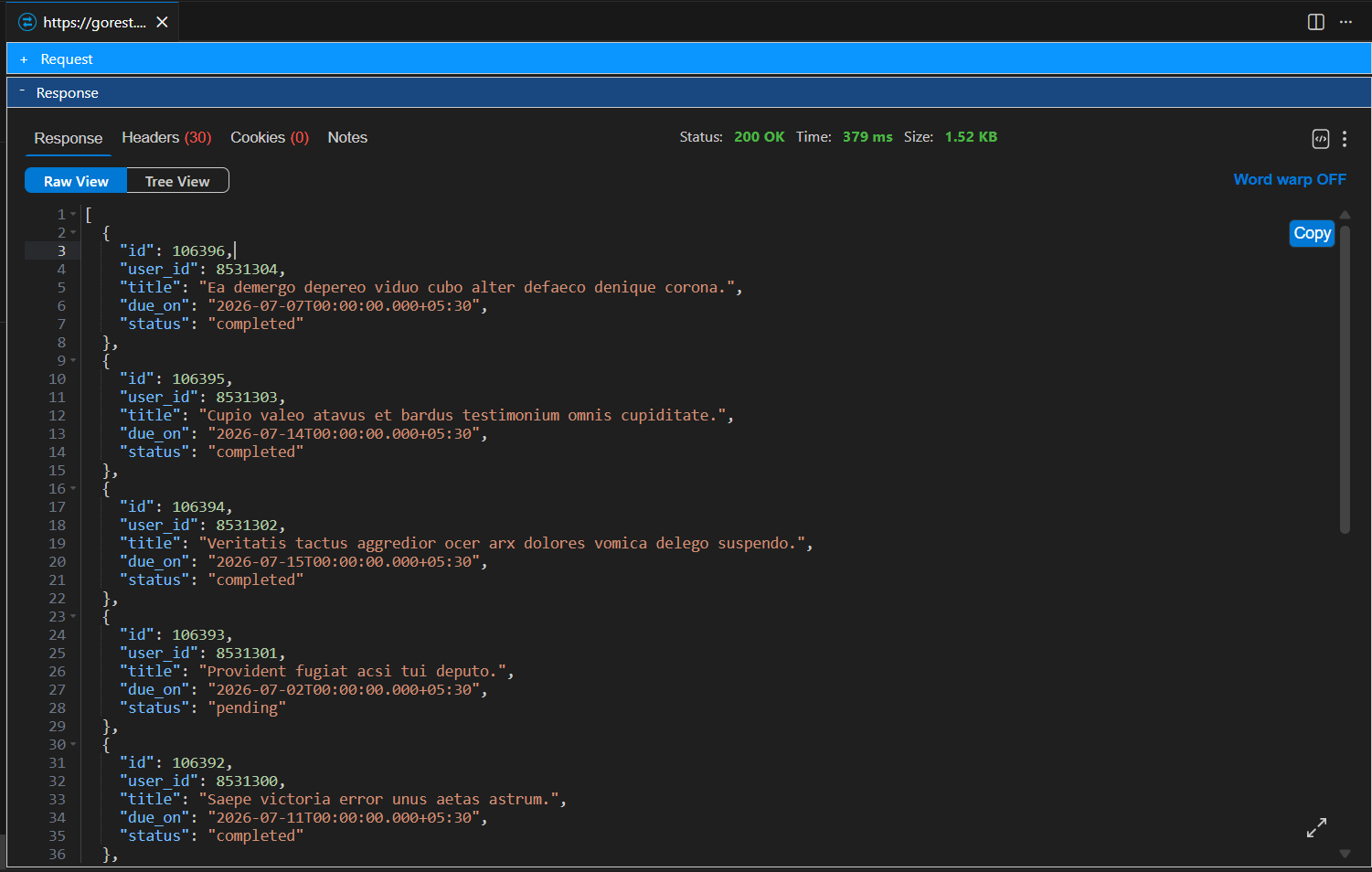
Response Section (Text View) - JSON
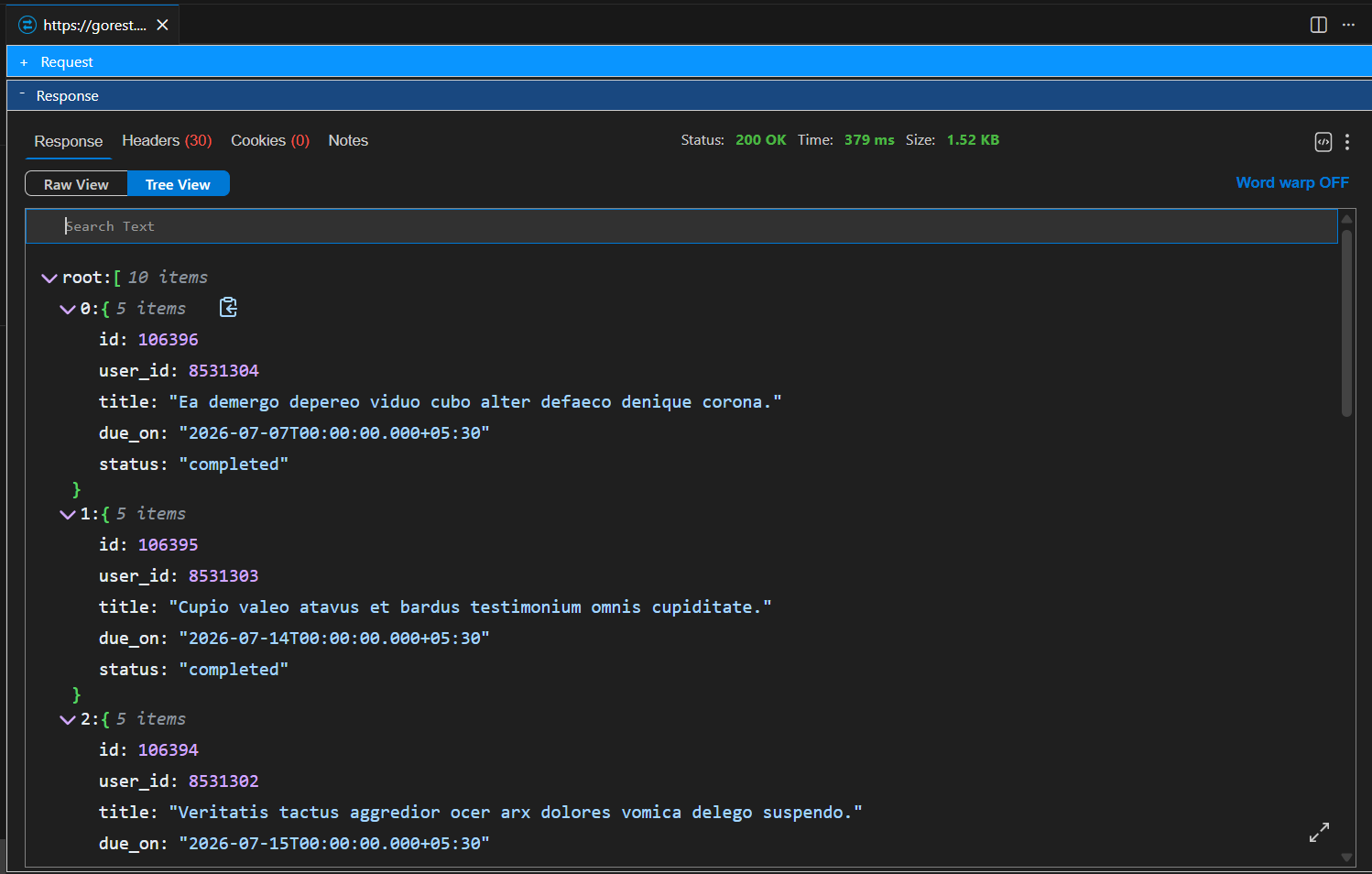
Response Section (Tree View) - JSON
Tree View
Browse JSON and XML responses as an expandable tree structure.
Features:
- Expand/collapse nodes - Show or hide sections of data
- Easy navigation - Click to expand nested objects and arrays
- Quick overview - See data structure at a glance
- Search - Search the content from the response data
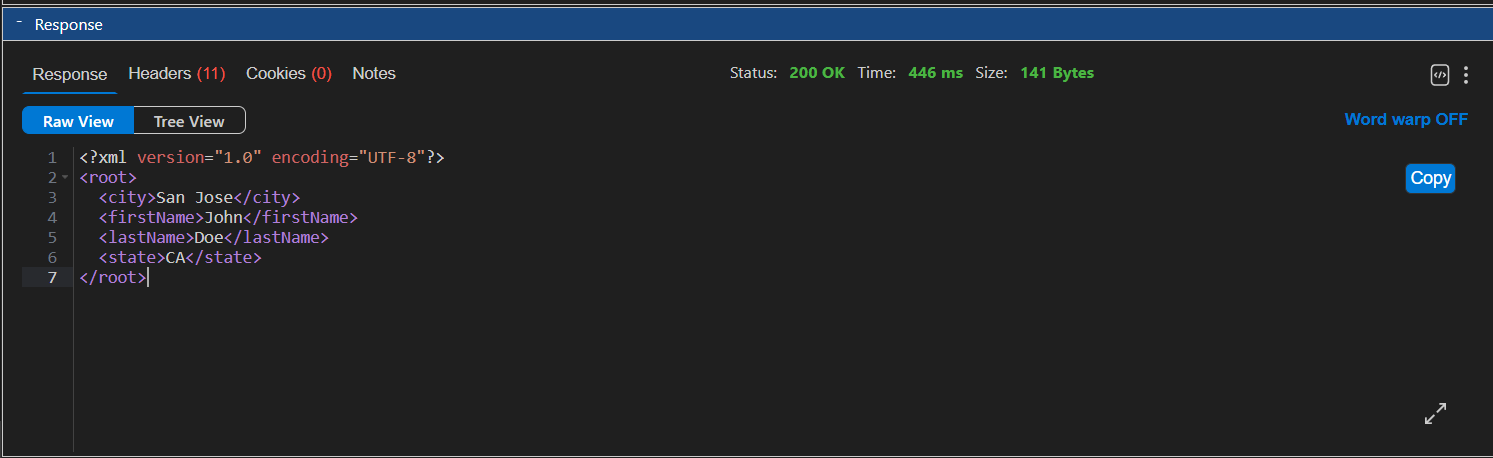
Response Section (Text View) - XML
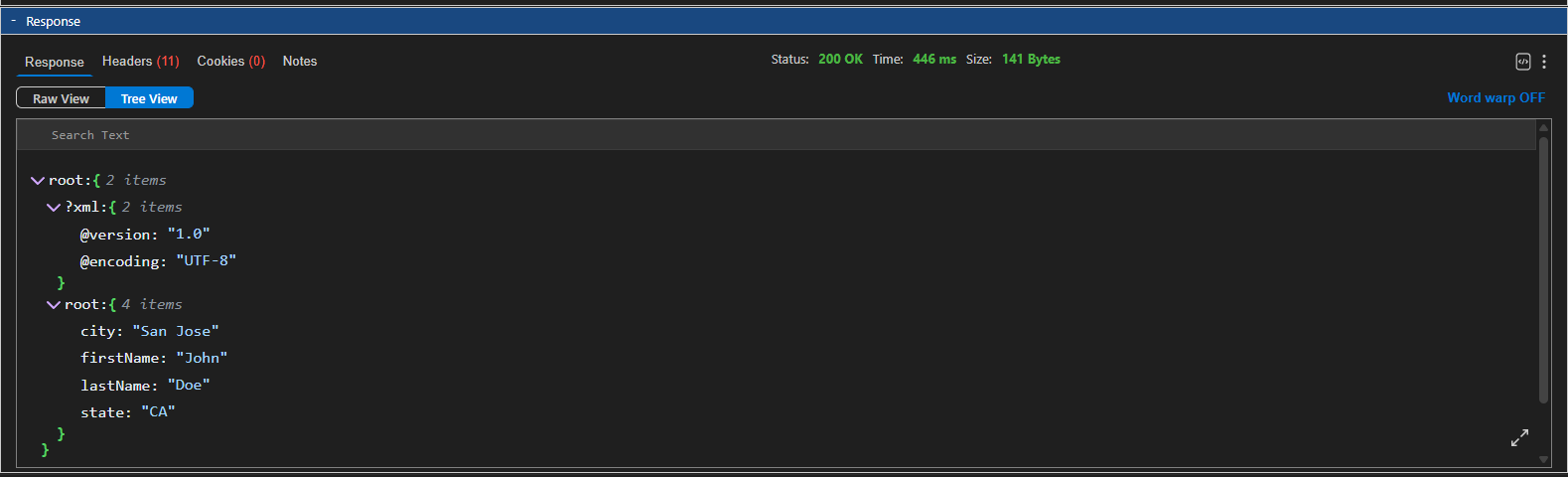
Response Section (Tree View) - XML
HTML Preview
View HTML responses as they would appear in a web browser.
Features:
- Live preview - See the actual rendered HTML
- Formatted display - CSS styles are applied
Copy Response
Copy the entire response to your clipboard with one click.
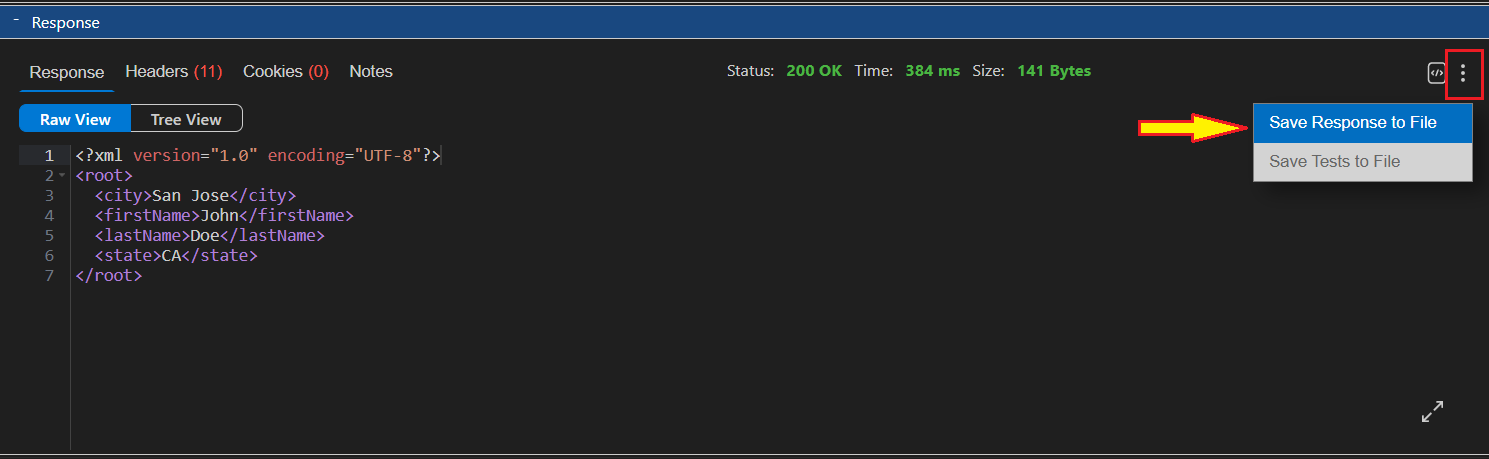
Download Response
Save the response as a file on your computer.
ℹ️ Response Metadata
Every response includes important information beyond just the data. Fetch Client shows you all the details.
- Status Code
- Response Time - Milliseconds (ms) or seconds (s)
- Response Size - Bytes (B), Kilobytes (KB), or Megabytes (MB)
- Response Headers
➡️ Next Steps
Now that you understand API responses, explore these topics:
- Testing Responses - Verify your API works correctly
- Request Logs - Review your request history
- Collections - Organize and share your requests